
Your listings - Click on the Listing menu or Listing tile on the home page.
This is where you View, Add, Edit, Sort and Find a Listing.
TABLE OF CONTENTS
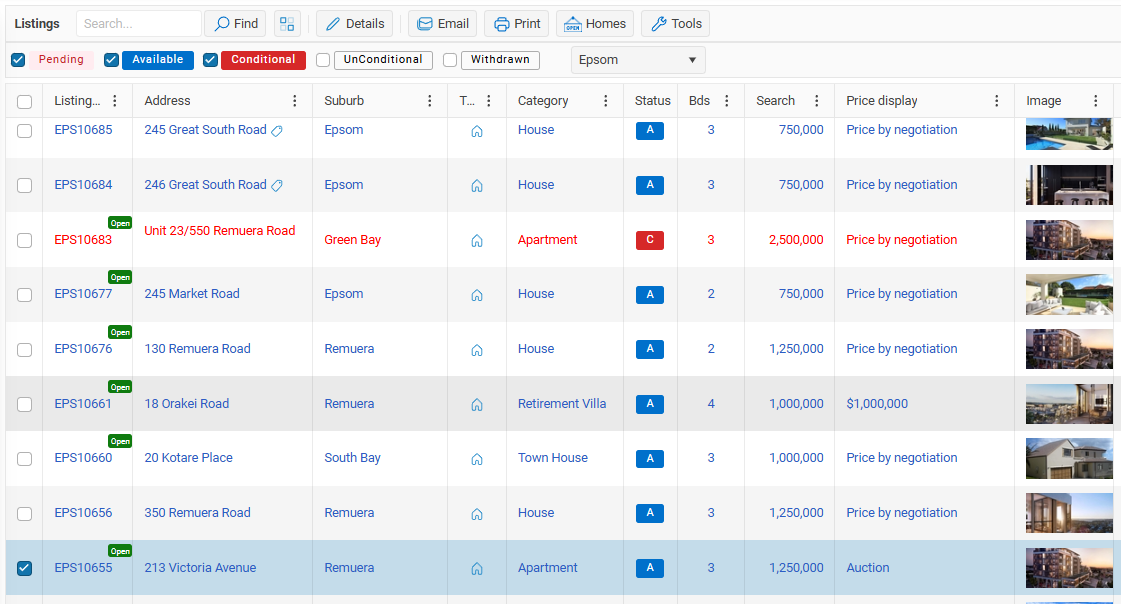
The default sort order is the newest Listing at the top
Search box
Use the Search box to find a listing

Enter 3 characters Listing Address, Listing ID and then the Find button (or press the Enter key)
Select button

Use the Select button to display only the selected Listings
+ Listing - New Listing

Click on the floating + button at the bottom right on the page to add a new Listing
Details button

To view or edit the details of a Listing click on the detail button. If you have Edit rights you can edit a listing.
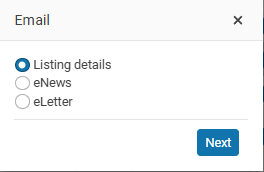
Email button

To send an Email – Click on the Email button
- Send multiple Listing details email
- create an eNews with selected listings
- send eLetter to Vendors or Purchases …
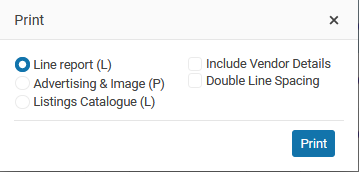
Print button

Print a report of your selected Listings
Open Homes button

Click on the Open Homes button to enter bulk or multiple Open Home times (Residential users only).
Tools button

The Tools button will open another toolbar.
- Copy a Listing - Select a Listing and click on the Copy button to copy a Listing more...
- Export a Listing
The default sort order is by Listing ID - When you filter by the Agent column the filter will check both Listing Agent 1 and listing Agent 2
OSL Agent users
For Agent users your listings are displayed be default. click on the company radio button to view all listings in the company.
Your listings listings where you are either listing agent 1 or listing agent 2.
NEXT Listing details - buttons