Listing → Internet tab

Now that you have loaded your listing …you want to send it to the portal websites that you have a subscription with.
TABLE OF CONTENTS
Websites tab

Use the Listing → Internet tab to choose where your listing is published.
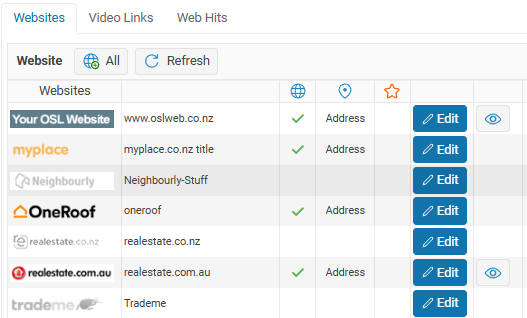
Under “Send your listing to your websites”, select the websites you want to send your listing to, then click Save to apply your selections.
All button
Use the All button to add your listing to all of the websites that you are subscribed to. Only the websites where your Office administrator has turned this ON will be selected. Some offices may not want every website to be included when the All button is used.
Preview button
Private Preview for Pending Listings (OSL websites only)
Use the Preview button to review the property images and advertising copy with your vendor before making the listing Available.
How
Open the Listing > Internet tab make sure that your property is already marked to go to your website, select and then click the Preview button. Send the link to your Vendor so they can view the property before the property marketing campaign begins.
A distinct page background and a Private Preview / Not Public notice clearly identify that the listing is still Pending.

Reviewing the Property
Check that the property details, images and advertising copy are correct. Vendors should let their agent know about any changes required before publication.
Viewing a private preview does not publish the listing or change its Pending status. The listing must still go through the normal publishing process before it becomes publicly available.
Please keep the preview link private. It is intended for agents and vendors reviewing the listing before publication.
Refresh button
Use the refresh button to Refresh your listing to all websites. Sometimes a listing my not be updated on a website so you can use this button to force a listing update.
Address
When adding a listing to a website you have some choices how you want the Address to be displayed or not.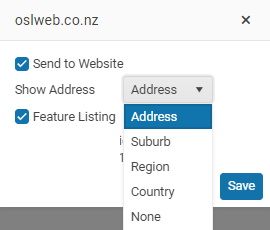
Click on the Show Address checkbox. Sometimes you may not want to display the full listing address on a website, so select the Address option and select the Address option that you want to use
Feature listing
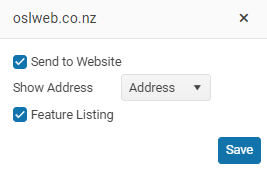
Use the Feature checkbox to mark this listing as a Feature listing on this website.
The Feature listing option is not available for all portal websites and some websites may charge a fee for marking a Listing as a Feature Listing
View listing
Click on the eye button to view this listing on this website.


The view button only works on portal websites that have ability to search by Listing ID. Unfortunately not all websites have this ability.
Edit
Click on the Edit button to add the Listing to a website. You can only select websites that your office has a subscription with.
Only portals that accept the current listing type are displayed. e.g. if your Listing is a Commercial Listing , only websites that accept Commercial listings are displayed.
Websites displayed in grey.
These are websites that you have not selected for this listing
Video Links tab

The Video Links tab is where you load your listing video files and external links that display media files for your listings
There are 3 types of external links
- Video
- Virtual tour – 3D tour – walkthrough
- External Link – URL
How to add a video link to your listing
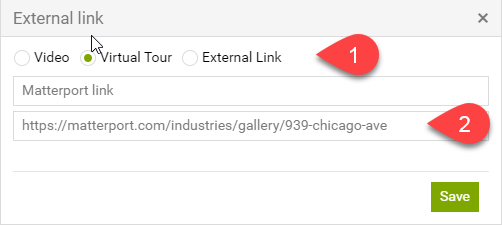
- Open the Listing > Internet tab > Video Links tab
- Click on the New button
- Select the Video type option (no.1)
- Find the listing video on YouTube and copy the URL and Paste the URL address (no.2)
- Save
Your link should look like this;
i.e. https://www.youtube.com/embed/Video ID
You can test your link by clicking on the the  eye button.
| website | Youtube | Matterport | Istaging | Vimeo |
| OSL websites | Yes | Yes | Yes | Yes |
| Trademe | Yes | Yes | Yes | Yes |
| realestate.co.nz | Yes | Yes | No | No |
 Notes
When we export your listings to other Portal will export these links as;
- Video links under the node: video link
- External links and Virtual Tours under the node: external Link
Web Hits tab

Web hits show how much attention a listing is getting online. OSL collects them each week for every listing, from your own OSL website and from the portals the listing is sent to. You can see them for each listing, and compare websites side by side.
What is counted
Count What it means
Search → The listing appeared in someone's search results.
Detail → Someone opened the listing's own page.
Email→ Someone sent an enquiry about the listing from the website.
QR→ Someone scanned the listing's QR code.
Counts are grouped by week, Monday to Sunday. The current week keeps growing until it ends.
Where a portal website allows we will View the website activity for some websites, the website activity can be used on the Vendor Activity report.
Website hits are reported week;ly starting on Monday of each week.
Website search figures are now more accurate. From mid-November 2026, automated visits from search engines and bots are no longer counted, so search counts for OSL-hosted websites will look lower than in earlier weeks. This is a correction, not a drop in real interest. Views of your listings and enquiries are unaffected.
Where the figures come from
Your OSL website. Each visit is recorded as it happens, so the figures are always current. Visits from search-engine robots and other automated programs are not counted, so the figures show real people.
Portal websites. OSL collects these automatically overnight, so yesterday's activity is normally there the next morning. The portals are:
- OneRoof
- Trade Me
- realestate.co.nz
- HouGarden
Things to know
- Portal connection: an office's portal figures only appear if the office is connected to that portal through OSL. If a portal shows no figures for an office, check the connection first.
- What each portal reports:
- HouGarden reports searches and page views only. Email enquiries are not available.
- Trade Me reports views and enquiries.
- realestate.co.nz reports on a rolling window. Its weekly figures for listings that have been on the market a long time, over a year, can be slightly lower than the true figure.
- New listings: a listing a portal doesn't recognise yet shows no figures for that portal. A week with no activity may show no figure at all, which means zero.
- Search figures dropped from November 2026. Robot traffic is no longer counted on OSL-hosted websites. A drop in search numbers from mid-November does not mean fewer people are finding your listings. Compare only weeks from the week starting 23 November 2026 onwards.
- Australian portals: figures from realestate.com.au and Domain are not collected at present.
Reports
- Listings on the Internet (Reports) shows which websites each listing is sent to.
- It also has an errors only option. Listings that failed to update on a website are shown with a red dot for that site, so you can see which listings need attention.
Manually add your hits
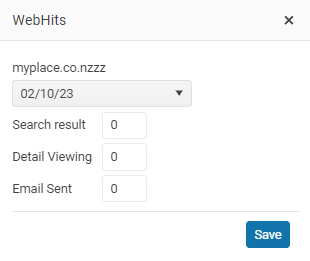
Not all portal websites provide us with the website hits. You can add the web hits from other websites
Select the website and then the edit button