
Step by step how to create a Promotion
New Promotion
To create a new Promotion, open the Promotions menu, select Promotions, then click the + Promotion button in the bottom-right corner of your screen.

Select the listing you want to create a Promotion for. Start typing a few letters of the listing name or address, then select the correct property from the matching listings displayed.
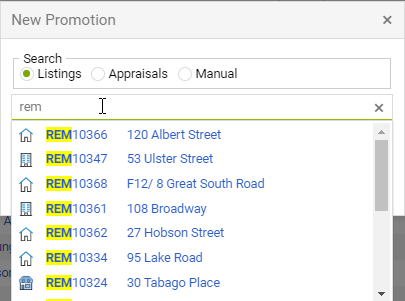
- All Promotions should be connected to a Listing, if you do not have a Listing entered in the system close out and add your listing first.
- You can create a Promotion invoice without a Listing using the Manual option
Sold Listing Promotion
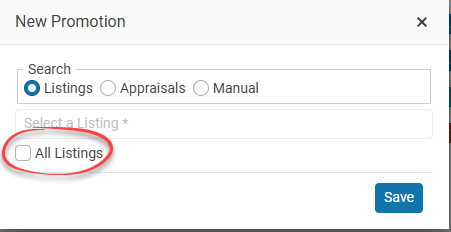
You can also create a Promotion for a property that is Conditional (Under Contract), Unconditional, or Recently Sold.
Select the All Listings checkbox to display Available, Conditional, and Unconditional listings from the last 90 days.
Promotion details
- Vendor - Who is being charged for this Promotion, your Vendor will automatically be loaded as the Vendor from your Listing.
- Listing Agent - The listing Agent is usually the agent for the promotion.
- Invoice limit - Invoice budget limit, the vendors agreed advertising limit.
- Invoice Due date - This is the date that the invoice is due. (This is also the date recorded for the Promotions dashboard.)
Advertising tab
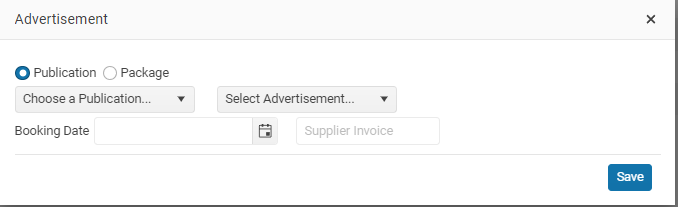
On the Advertising tab add the advertisements for your Promotion.
Select the Publication and then the Advertisement
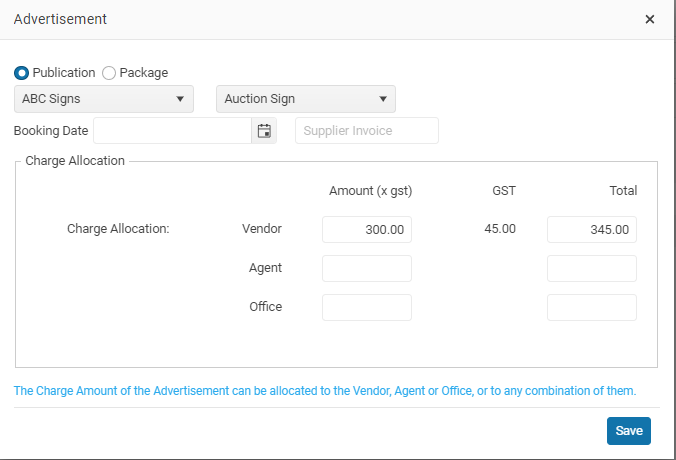
The amount will be the default amount loaded for this advertisement in Settings > Office.
You can change the Amount being charged.
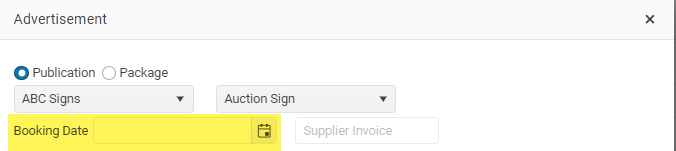
Booking Date
Every Advertisement needs to have a date or booking date. The Advertisement will remain Red until you set a Booking date.
Vendor share
Charge allocation - by default the advertisement will be allocated to the Vendor, Agent or the Office by default all of the Advertisement will be allocated to the Vendor.
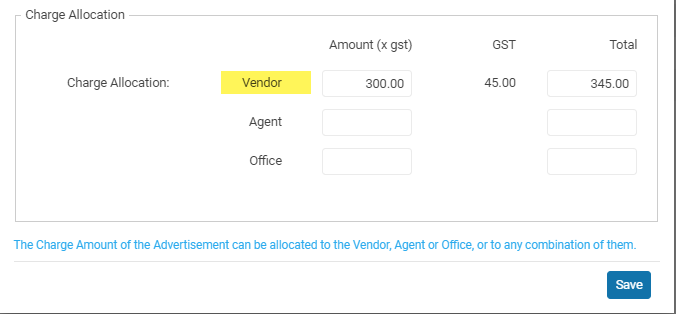
If you allocation some of the advertising to the Agent this can be deducted back from the Agents pay statement
It is not uncommon for the Office to contribute to the marketing of a listing. So even though the Vendor is not paying for a specific item you may still want the vendor to see that you are spending this amount.
Examples: Color flyer printing, company website.
Advertising Package
You can create Advertising packages so that you do not have to add each advertisement individually. Packages are maintained in Settings > Office Promotions.
To add an advertising package to a Promotion,motion select the New button and select the Package option
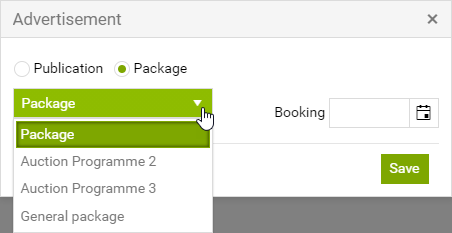
Click on the Save button and the items for the Package will be added to your Promotion.
Promotion status
New Promotions are created with the status Pending
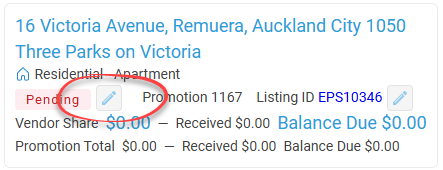 Note. Only in Promotions with the status In Progress are displayed on the Sales Settlement Statement report
Invoice
You can now create an Invoice for your Promotion

When you create a Promotion Invoice it will be saved to the Promotion > Docs tab
NEXT Promotion Status