
These are the report options when you open a listing and select the Print button.
Listing → Print button

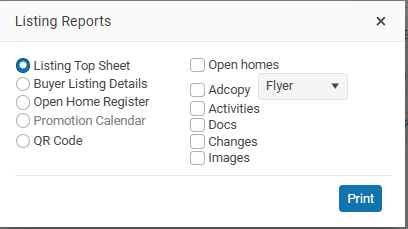
TABLE OF CONTENTS
- Listing Top Sheet report
- Buyer Listing details report
- Vendor Activity report
- Promotion Calendar report
- Open Home Register reports
- Checklist
- QR Code
Listing Top Sheet report
The listing Top sheet report is the full report for a listing including confidential listing information, changes, docs and images.
This report is for management and is not intended to be made available outside the company
Buyer Listing details report
This report is the system report that you can give to your potential buyers.
Show Address
You can select the full Address, Suburb, Region to display on your report.
Display Open Homes
For Residential listings you have the option to print the upcoming open homes.
Select Adcopy
You can select which listing advertising copy that you want to use on your report.
Promotion Calendar report
This option will print a calendar layout report of the advertising for your listing
Open Home Register report
Residential listings only
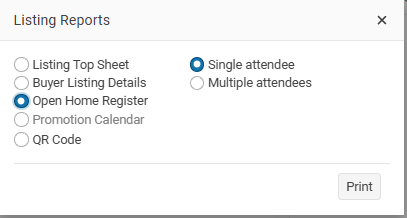
There are two options available for printing an Open Home Register for your listing. In some markets, these may also be referred to as OFI or Open Time Registers.
- Single Attendee
This report prints two forms per A4 landscape page, with a separate form for each attendee to complete. - Multiple Attendees
This report is also printed in A4 landscape format and allows multiple visitors to enter their details on a single page.
Checklist
If you office has the listing Check list turned on you will be able to print a report of the completed and incomplete tasks on your checklist.
QR Code
Use the QR Code print option to generate a QR code for your listing.
Click Print to create the QR code report. The report will be saved to the listing under Listings > Docs.
By default, the QR code will link to the property on your office website using the website address + Listing ID.
You can change this link before generating the QR code if you would like the QR code to direct users to a different webpage.