
On this tab you can add new menu options for your website as well as new pages and edit the content of each page.

TABLE OF CONTENTS
Menu items
Your menu items and on the left side, these are the menus that visitors see.
Pages
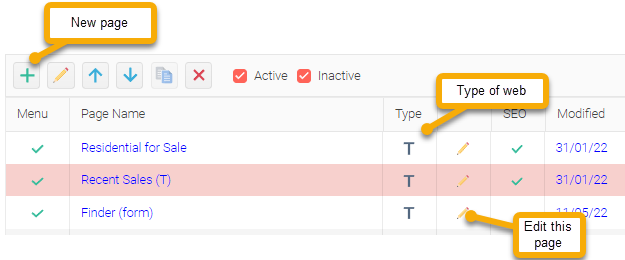
The Pages grid show the pages that are under each menu on your website.
- Select the Pages tab in Office website settings
- Select the menu that you want to create the page on. Select the menu item is where you want to add the new page (grid on the left) then click on the button on the right-hand side click the button.
- Give your page a Name and select the type of page.
Use the UP & DOWN arrow buttons to change the page order on the menu
Menu checkbox – When checked this means that the page will appear on your website menu.
If unchecked the page will appear on your website but not as a menu item.
Page name – Each page name must be unique.
Do Not use special characters in the name of your page i.e. ‘ # “ : ; in the page name
Types of page
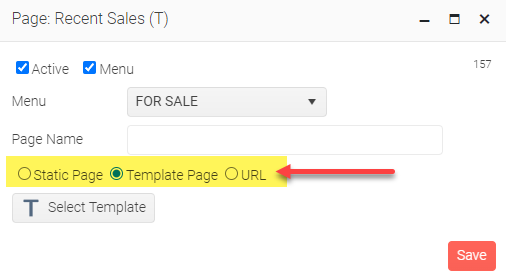
There are three types of pages that you can create on your website:
• Template (T) – Choose from more than 40 pre-designed page templates, including pages for listings, agents, testimonials, open homes, news articles, and more.
• Static Page – Create a custom page using your own text, images, and content. Ideal for News articles, company information, and other unique content.
• Link Page – Create a menu item that links to another page on your website or to an external website.
Every page has a status, only Active pages can be seen on your website. Active pages are displayed in Blue, Inactive pages are displayed in Black font.
Click on the Save button to save your page.
Template pages
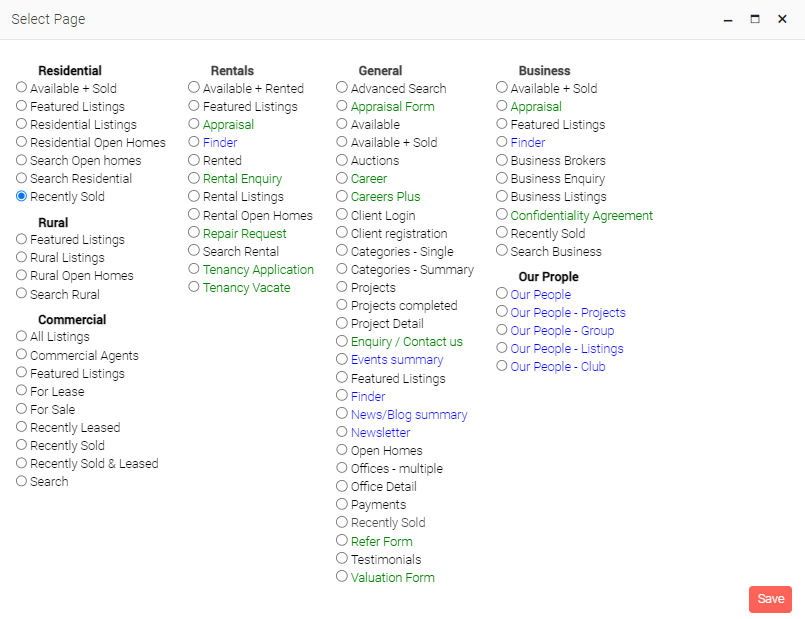
Your website comes with many Template page options. All you have to do is select the template pages that you want to use on your website.
Create your new page as you would normally and select the type Template.
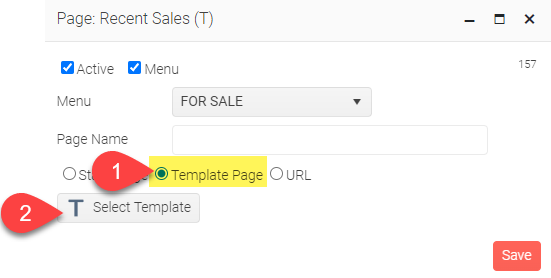
Then select the template that you want to use.
Static page
Use the static page option to create a blank page, so you can add your own content.
URL page
Use the URL page type. This is technically not really a page just a link to another page.
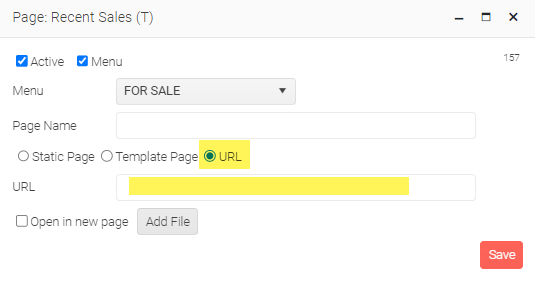
Ente the URL that you want this page to link to.
Make sure that you tick the Open in new page checkbox if linking to another website.
SEO
With each page you can set the SEO values
Search engine optimisation
NEXT Website pages SEO